27 Hidden Chrome Extensions That Will Change How You Work Forever
Introduction
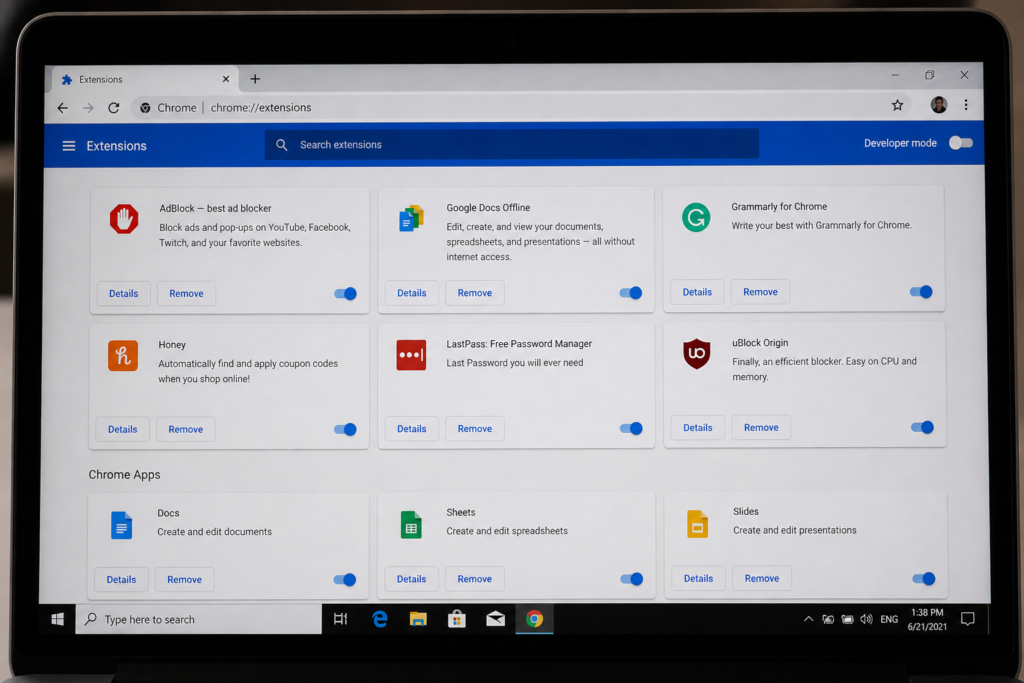
Imagine if your browser could do more than just open websites. What if it could become a personal assistant, a professional editor, and a security guard all at once? Most people stick to the basics—uBlock Origin, maybe a password manager, and a VPN. But there is a whole world of “hidden” gems in the Chrome Web Store that remain largely undiscovered.
These aren’t your typical mainstream apps. These are the niche tools used by top 1% productivity hackers, developers, and digital marketers to gain an unfair advantage in their daily workflow.
In this massive guide, we are uncovering 27 hidden Chrome extensions that will fundamentally change your relationship with the internet. Whether you are a student, a creative, or a business owner, these tools are about to make your life 10x easier.
Part 1: The Productivity Powerhouses
If you feel like your browser is slowing you down instead of helping you work faster, you’re not alone. Most people only scratch the surface of what Chrome can actually do. That’s where these hidden Chrome extensions for productivity come in. These powerful yet underrated tools are designed to streamline your workflow, eliminate distractions, and help you get more done in less time.
Whether you’re managing multiple tabs, organizing research, or automating repetitive tasks, these extensions quietly transform your browser into a high-performance productivity machine. By using the best underrated Chrome extensions, you can save hours every week and stay focused on what truly matters—without feeling overwhelmed.
1. Workona: Tab Management Reimagined
If you are the type of person who has 50 tabs open until your laptop fans sound like a jet engine, Workona is your savior. Unlike basic tab suspenders, Workona treats your browser like a workspace. You can group tabs by project, meaning you can switch from “Client Work” to “Vacation Planning” with a single click, and all unnecessary tabs disappear until you need them again.
2. Vimium: The Hacker’s Way to Browse
Ever wanted to navigate the web without ever touching your mouse? Vimium brings the power of the Vim editor to Chrome. It provides keyboard shortcuts for navigation, such as scrolling, clicking links, and switching tabs. It feels like magic once you master the “f” key, which overlays letters on every clickable element on the screen.
3. Scribe: Turn Any Task Into a Step-by-Step Guide
If you spend a lot of time explaining things to colleagues or friends, Scribe is a game-changer. You simply click “Record,” go through your process on any website, and Scribe automatically generates a written guide with screenshots and circles around where you clicked. It’s the ultimate documentation tool that no one talks about.
4. Text Blaze: Stop Typing the Same Things
We all have those snippets of text we type constantly—email signatures, support responses, or meeting links. Text Blaze allows you to create “snippets.” You type a shortcut like /sig and it instantly expands into a full, formatted paragraph. It even supports dynamic logic, like inserting the current date or the person’s name automatically.
Part 2: Research & Learning Hidden Gems
When it comes to online research, most users waste time switching tabs and losing important information. These hidden Chrome extensions for research and learning make the process faster, smarter, and more organized. From highlighting key insights to saving valuable content in one place, these underrated tools help you absorb information efficiently and stay ahead. If you want to improve focus and boost knowledge retention, these best Chrome extensions for learning are true hidden gems worth using.
5. Wiseone: Your AI Reading Assistant
Reading long academic papers or technical blog posts is exhausting. Wiseone is a hidden AI extension that simplifies complex information. It can cross-reference facts, define difficult terms as you hover over them, and even summarize entire articles into three bullet points so you can decide if the full read is worth your time.
6. Liner: The Highlighter for the Whole Web
In school, we used highlighters on paper. Liner lets you do that on any live website. When you return to a page months later, your highlights are still there. Even better, it allows you to see what other “experts” have highlighted on the same page, helping you find the most important information faster.
7. Google Scholar Button
This is a “hidden in plain sight” extension by Google itself. If you are doing research, you can highlight any phrase or title, click the button, and it will find the full academic citation and PDF version if available. It saves hours of manual searching through databases.
Part 3: Design & Creative “Secret” Tools
If you create visuals, content, or social media posts, these hidden Chrome extensions for design and creativity can seriously upgrade your workflow. From picking perfect color palettes to capturing inspiration instantly, these underrated tools help you design faster and smarter. Whether you’re a beginner or a pro, using these best creative Chrome extensions can save time, boost ideas, and make your work stand out without needing complex software.
8. ColorPick Eyedropper
Ever landed on a website and loved the specific shade of blue they used? Instead of digging through the “Inspect Element” code, ColorPick allows you to hover over any pixel and get the exact HEX or RGB code instantly. It’s clean, lightweight, and essential for designers.
9. Fontanello: The Font Detective
Designers often need to know the typography of a site. Fontanello lets you right-click any text and immediately see the font family, size, weight, and color. It’s much faster than other font-finding extensions and stays out of the way until you need it.
10. Muzli: The Designer’s Morning Coffee
Instead of a blank “New Tab” page, Muzli gives you a curated feed of the best design inspiration from around the web (Dribbble, Behance, etc.). It’s a hidden gem for creatives who want to stay inspired without having to go looking for it.
Part 4: Developer & Power User Essentials
If you want full control over your browser, these hidden Chrome extensions for developers and power users can take your workflow to the next level. From debugging websites to managing advanced settings, these tools help you work faster and smarter. Whether you’re coding, testing, or customizing your browsing experience, these best Chrome extensions for power users deliver speed, efficiency, and deeper control that most users never unlock.
11. Wappalyzer: See What a Website is Built With
Curious if a site uses Shopify or WordPress? Want to know their analytics provider? Wappalyzer uncovers the “stack” of any website. It’s an incredible tool for competitive research or developers looking to see how their favorite sites function.
12. JSON Viewer
If you ever deal with APIs or raw data, you know how ugly raw JSON looks in a browser. This extension turns that wall of text into a beautiful, expandable, and searchable tree structure. It makes debugging and data reading significantly less painful.
13. Check My Links
Broken links are a silent killer for SEO. This extension quickly scans any webpage and highlights all links—green for those that work and red for those that return a 404 error. It’s a favorite for content marketers and SEO specialists.
Part 5: Privacy & Security (The Silent Guardians)
While you browse, your data is constantly at risk—often without you noticing. These hidden Chrome extensions for privacy and security act as silent guardians, protecting your information in the background. From blocking trackers to securing passwords and preventing malicious sites, these tools help you stay safe online. If you care about digital safety, these best Chrome extensions for privacy are essential for a secure and worry-free browsing experience.
14. Privacy Badger
Created by the EFF, this extension learns to block invisible trackers as you browse. Unlike some ad blockers, Privacy Badger focuses on the “spies” that follow you from site to site. It’s one of the most effective ways to keep your data private without breaking the websites you visit.
15. Fake Filler
Testing forms can be a nightmare. If you are a developer or marketer, Fake Filler fills all input fields on a page (names, emails, passwords) with “dummy” data with a single keyboard shortcut. It allows you to test form submissions in seconds.
16. SingleFile
Sometimes you want to save a webpage exactly as it looks right now—not as a messy PDF, but as a single HTML file. SingleFile packs the images, CSS, and text into one file that you can open offline. It’s the best way to archive content before it gets deleted or changed.
Part 6: Hidden Tools for Better Writing
Writing online can be time-consuming, especially when you’re trying to stay clear, error-free, and engaging. These hidden Chrome extensions for writing help you improve grammar, refine tone, and create high-quality content faster. Whether you’re drafting blog posts, emails, or social media content, these tools boost clarity and save time. If you want polished, professional results, these best Chrome extensions for writing and editing are a must-have for every content creator.
17. Wordtune: Rewrite Your Thoughts
We all know Grammarly, but Wordtune is the “hidden” alternative that focuses on tone and flow. It doesn’t just fix your spelling; it offers five different ways to rewrite a sentence to make it sound more professional, casual, or concise.
18. Language Reactor
If you are trying to learn a language while watching Netflix or YouTube on Chrome, this is a must-have. It shows dual subtitles (your native language and the one you’re learning) and lets you hover over words to get instant translations. It turns entertainment into a study session.
Part 7: Niche Utilities You Didn’t Know You Needed
Sometimes the smallest tools make the biggest difference. These hidden Chrome extensions you didn’t know you needed solve everyday problems you didn’t even realize could be fixed. From quick file conversions to smart shortcuts and micro-automation, these niche utilities quietly improve your browsing experience. If you’re looking for unique Chrome extensions to save time and boost efficiency, these underrated tools are surprisingly powerful and worth trying.
19. Picture-in-Picture (by Google)
Surprisingly, this isn’t built into the main UI of Chrome clearly. This extension allows you to pop any video into a floating window that stays on top of other tabs. You can work in a spreadsheet while a tutorial plays in the corner of your screen.
20. Dark Reader
Not every website has a dark mode. Dark Reader creates one for every single site on the internet. It doesn’t just invert colors; it carefully adjusts brightness and contrast to make sure things remain readable without straining your eyes.
21. Forest: Stay Focused
Based on the popular mobile app, the Forest extension lets you plant a digital tree when you need to focus. If you visit a “blacklisted” site (like Twitter or Reddit), your tree dies. It’s a psychological trick that actually works for boosting productivity.
Why These Extensions are “Hidden”
The Chrome Web Store has over 180,000 extensions. Because Google’s search algorithm inside the store favors apps with the most downloads, the “rich get richer.” Huge companies like Grammarly or Honey dominate the front page, while innovative, independent developers struggle to get noticed.
To find these gems, you often have to dig through developer forums, Reddit communities like r/chrome, or specialized productivity newsletters. But why does that matter? It matters because the “mainstream” tools are often bloated. These hidden extensions are usually:
- Lightweight: They don’t slow down your RAM.
- Privacy-focused: Many are open-source and don’t sell your data.
- Specific: They solve one problem perfectly rather than trying to do everything poorly.
How to Manage Your Hidden Extensions Without Slowing Down Chrome
One of the biggest myths is that having many extensions will ruin your computer’s performance. While it’s true that every extension uses some memory, the “hidden” gems listed above are mostly event-driven, meaning they only run when you click them.
However, to keep your browser snappy, follow these three rules:
- Use an Extension Manager: Install a tool like “Extensity.” It allows you to enable or disable groups of extensions with one click.
- Audit Monthly: If you haven’t used an extension in 30 days, remove it.
- Check Permissions: Always look at what data the extension asks for. If a “Calculator” extension asks to read your browsing history, delete it immediately.
The Future of Chrome Extensions: Manifest V3
You might have heard rumblings about “Manifest V3.” This is a major update to how Chrome extensions work. While some older “hidden” tools might break, the new system is designed to make extensions safer and more battery-efficient. The tools we’ve selected here are either already updated or built with modern frameworks that will survive the transition.
FAQs
1. Are these hidden Chrome extensions safe to use?
Yes, most niche extensions are safe, but you should always check the “Privacy Practices” tab on the Chrome Web Store. Look for developers who have a “Featured” badge or those that are transparent about their source code.
2. Do Chrome extensions slow down my computer?
They can if they are poorly coded or if you have dozens of them running “background processes.” To prevent this, use extensions that only activate when clicked, or use an extension manager to disable them when not in use.
3. Can I use these on mobile?
Standard Chrome on Android and iOS does not support extensions. However, you can use browsers like Kiwi Browser or Yandex on Android, which allow you to install Chrome Web Store extensions on your phone.
4. How do I find “hidden” extensions myself?
The best way is to browse communities like Product Hunt, the “Indie Hackers” forums, or specific subreddits dedicated to productivity and web development.
5. Is there a limit to how many extensions I can install?
Technically, no. But practically, your browser’s performance will dip if you have more than 10-15 active extensions running simultaneously. Quality over quantity is the golden rule.
Conclusion
The real power of Chrome isn’t just in the browser—it’s in how you customize it with the right tools. These hidden Chrome extensions are more than just add-ons; they are smart, problem-solving tools built to boost productivity, improve focus, and simplify your digital life. Instead of relying only on popular options, exploring these underrated Chrome extensions gives you a clear edge by helping you work faster, smarter, and more efficiently every single day.
However, the key to success is not installing everything at once. Start small and choose 2–3 best hidden Chrome extensions for productivity that directly solve your biggest challenge—whether it’s managing tabs, improving writing, or staying focused. As you gradually build your setup, you’ll notice a powerful shift in your workflow, saving time and increasing output without extra effort.
In a world where efficiency matters more than ever, these hidden tools can quietly transform the way you work online. Take action today, experiment with the right extensions, and turn your browser into a high-performance productivity machine that gives you a real competitive advantage.